• Skip to primary navigation
  • Skip to main content
  • Skip to primary sidebar
  • Skip to footer

Moto G Phone Guide

  • Home
    • Contact
    • Privacy
    • Forum
  • User Manuals
    • Moto G8 User Manual for Moto G8 Plus and Moto G8 Play
    • Official Moto G7 user manual
    • Official Moto G6 user manuals, Moto G6 Play user manuals and Moto G6 Plus user manuals
    • Official Moto G5 User Manual and Moto G5 Plus User Manual
    • Moto G4 User Manual: official PDF user guide for Moto G4, Moto G4 Plus and Moto G4 Play
    • Moto G 2015 user guide
    • Moto G 2nd Gen User Manual (Moto G 2014 User Manual)
    • Moto G Manual (Mot G user guide)
  • how-to guide
    • Stylus features on Moto G Stylus (all models)
    • Understand Moto G Model Names
      • What’s new in Moto G 2024? Moto G 5G 2024 vs Moto G Power 2024 vs Moto G Play 2024
      • Moto G8 vs Moto G8 Power vs Moto G8 Power Lite vs Moto G Power vs Moto G Stylus vs Moto G Pro vs Moto G fast: What are the differences?
      • Moto G8 Plus vs Moto G8 Play: Differences and common features
      • Moto G7 vs Moto G7 Play vs Moto G7 Plus vs Moto G7 Power: what are the differences?
      • What are the differences: Moto G6 vs Moto G6 Plus vs Moto G6 Play (Moto G 2018)?
      • Moto G5 vs Moto G5 plus: the major differences between Moto G5 and Moto G5 plus
      • What’s new in Moto G5 and Moto G5 Plus?
      • What are the differences of Moto G4, Moto G4 Plus and Moto G4 Play?
      • Top 6 exciting improvements in Moto G 2015 (Moto G 3rd Gen)
      • Moto G 2014 (aka Moto G 2nd generation) vs Moto G: top 10 facts you should know
    • Moto G5 Plus SIM card guide
      • How to install Moto G5 SIM card?
    • How to take screenshot on Moto G (without using apps)
    • How to use Moto G camera and change camera settings?
    • How to access developer options menu in Moto G?
    • How to use FM radio on Moto G?
    • Moto G wireless display: the problem and the solution
    • Meaning of Moto G notification icons
    • How to use Moto G voice command?
    • How to use Motorola Assist on Moto G?
    • How to Silence Moto G Notifications and Ringtones
    • How to use dual SIM cards on Moto G?
    • How to connect Moto G with PC through USB cable? (for Moto E and Moto X as well)
    • How to use Bluetooth to transfer files on Moto G, Moto E and Moto X?
    • How to use Wi-Fi Direct to transfer files on Moto G, Moto E and Moto X?
    • How to block certain callers on Moto G, Moto E and Moto X?
    • How to use Moto G safe mode (applies to Moto X and Moto E safe mode as well )?
    • Moto G USB OTG guide (also for Moto X)
  • Online Manual
    • Moto G layout
    • How to remove Moto G back cover?
    • Moto G Home screen
    • Insert SIM card into Moto G and Moto E
    • How to add apps to Moto G home screen (for Moto E and Moto X as well)
    • Add new home screen pages on Moto G, Moto E and Moto X
    • Use widgets on Moto G home screen (for Moto X and Moto E as well)
    • How to update Moto G, Moto E and Moto X?
    • Moto G 2015 camera guide
    • Top 10 new features in Android Nougat update for Moto G4 and Moto G4 Plus
    • What’s new in Moto G5 and Moto G5 Plus?
  • Accessory Guide
    • Moto G case guide

Moto G5

Understand Moto G Model Names

by simon 1 Comment

Understand Moto G Model Names

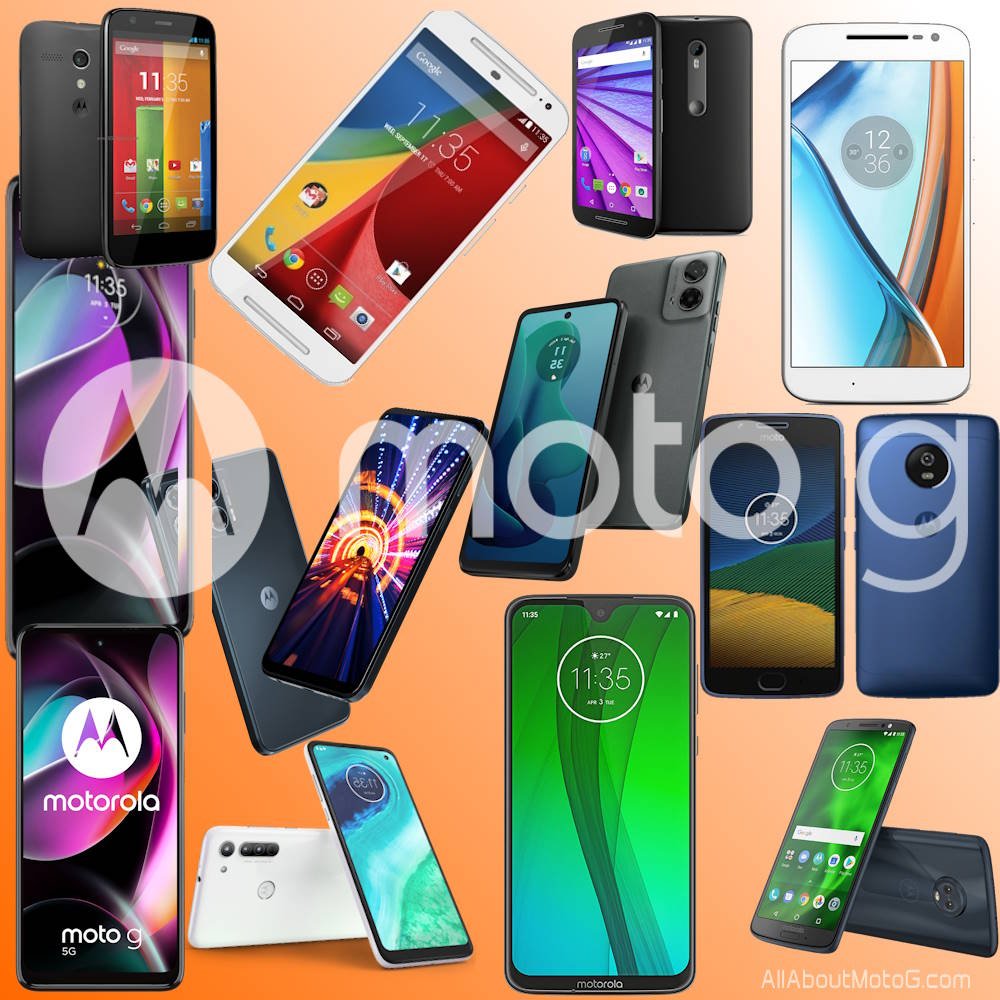
You are not alone if you are confused by Moto G model names. There are simply too many Moto G models.

Motorola has been introducing more than 10 Moto G phone models every year since 2020. However, the naming convention of these models has become quite confusing for most potential buyers and even the sales staff in Lenovo/Motorola stores. The naming convention is often complex and doesn’t make sense, making it difficult for people to understand which Moto G model they should choose.

This Moto G guide explains the naming convention of Moto G phones in the US and international markets to help you understand the meaning of Moto G model names. It also includes a list of known Moto G models.

Why are there so many Moto G models?

When Google sold Motorola to Lenovo in 2024, Moto G was the most valuable brand in assets. The first generation of Moto G (2013) was a success in the crowded Android smartphone market.

The first generation of Moto G (2013) actually set the standard for a real middle-range smartphone: reasonable price with decent performance. Moto G 2014 (2nd Gen) was also well-received in the market.

Compared to Moto E (which is in the death spiral) and the abandoned Moto X, Moto G has its unique brand value among Android users.

After years of trial, Lenovo/Motorola found Moto G to be the most valuable brand, and therefore, they put the Moto G stick on as many phones as possible. Since 2020, on average, you’d expect one new Moto G model each month.

With Samsung and Apple dominating the high-end smartphone market, Motorola has to seek opportunities in the middle-range market where Moto G targets.

Currently, Motorola has 4 major brands (series) for smartphones:

  • Moto E for entry-level Android phones. It is actually in the death spiral. The lower end of Moto G competes against Moto E directly.
  • Moto G for middle-range Android phones.
  • Motorola Edge (and Edge+) for the high-end Android phones.
  • Motorola Razr (and Razr+) for foldable phones.

Motorola Edge never claimed a meaningful market share in the high-end market. Instead, Motorola has to lower the price so that Motorola Edge (and Edge+) can compete in the middle-range segment.

So, in the current situation, Motorola has to put most of its eggs into the Moto G and some into the Motorola Razr.
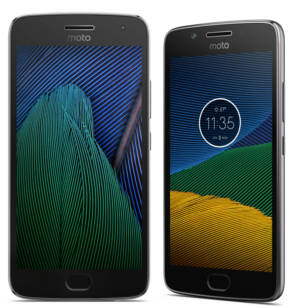

Moto G model names in

… Read the rest

Filed Under: Moto G Buyer Guide, Moto G How-to Guide, Moto G News Tagged With: Moto E, moto g, moto g (2nd generation), Moto G 2015 (Moto G3), Moto G 2018, Moto G 2019, Moto G 2021, Moto G 2022, Moto G 2023, Moto G 2024, Moto G Fast, Moto G model name, Moto G Play, Moto G Power, Moto G Stylus, Moto G4, Moto G5, Moto G5 plus, Moto G6, Moto G7, Moto G9, Moto X, Motorola Razr, stylus

Moto G5 vs Moto G5 plus: the major differences between Moto G5 and Moto G5 plus

by simon 2 Comments

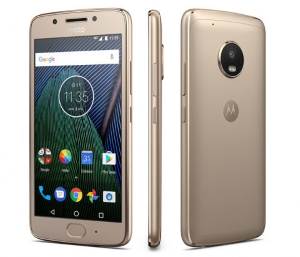
Moto G5 vs Moto G5 Plus the major differences between Moto G5 and Moto G5 plusWhen Moto G5 (Moto G 2017) was announced. There were 2 products announced: Moto G5 and Moto G5 Plus.

This makes some potential Moto G buyers confused: Moto G5 or Moto G5 Plus?

In fact Lenovo-owned-Motorola does not need to announce two Moto G models. They already have a comprehensive Moto line: Moto E, Moto G, Moto M, Moto Z and Moto X. In some regions, there is a Moto C as well.

But the trend is Lenovo and many other Android vendors still throw spaghetti on the wall to figure out what people want.

This guide will compare two phones, Moto G5 vs Moto G5 plus, to help you understand the differences between them.

Moto G5 vs Moto G5 plus: Moto G5 Plus is slightly larger and heavier

Moto G5 and Moto G5 Plus share similar aluminum material. There are no difference in build quality, which is excellent among phones in this price range.

Although Moto G5 Plus is larger (5.2″ vs 5″) and heavier (155g vs 145g), the difference is only marginal.

The screens are also almost identical except the size.

Moto G5 vs Moto G5 plus: Moto G5 Plus performs better

When we talk about performance, Moto G5 Plus is a clear winner due to the faster and newer CPU used in Moto G5 Plus.

Moto G5 is equipped with the 28nm 1.4GHz Snapdragon 430; while Moto G5 plus comes with a 14nm 2G Hz Snapdragon 625.

The GPU in Moto G5 Plus is Adreno 506 (with Snapdragon 625), which is 2.6x faster than Adreno 505 (with Snapdragon 430) in Moto G5.

When you play some heavy games, you will feel the performance difference immediately.

But for daily tasks, you probably will not feel much difference.

Moto G5 vs Moto G5 plus: Moto G5 Plus has a better main camera

The 5MP front-facing camera in Moto G5 and Moto G5 Plus is identical.

But the main camera (rear-facing) in these two phones is different.

In the paper, Moto G5 has a 13MP main camera. Moto G5 Plus has a 12MP camera.

You should not be fooled by the number of pixels. The main camera in Moto G5 Plus is far better actually.

The 12MP camera in Moto G5 Plus has a larger aperture of f/1.7 (vs f/2.0 in Moto G5). This means Moto G5 plus can take better pictures in low light … Read the rest

Filed Under: Moto G Buyer Guide, Moto G News Tagged With: camera, CPU, GPU, Moto, Moto G5, Moto G5 battery, Moto G5 plus, SIM card

How to install Moto G5 SIM card?

by simon 9 Comments

Many Moto G5 owners failed to install SIM card in Moto G5 due to vague illustration in Moto G5 user manual.

This Moto G guide shows you how to install Moto G5 SIM card(s) and micro SD card correctly.

What’s the difference in SIM card slot for Moto G5 and Moto G5 Plus?

One of the major differences between Moto G5 and Moto G5 Plus is the removable battery in Moto G5.  Of course, Moto G5’s back cover is also removable.

This results in different design of the SIM card slots in Moto G5 and Moto G5 Plus.

As explained in Moto G5 Plus SIM card guide, Moto G5 Plus features a removable SIM card/SD card tray.

But in Moto G5, the SIM card slot and micro SD card slot are under the back cover. There is no removable SIM card tray in Moto G5.

This means you must remove the back cover to install Moto G5 SIM card (and micro SD card as well).

For SIM card size for Moto G5, as explained in this post, Moto G5 and Moto G5 plus both use nano SIM card.

How to install Moto G5 SIM card?

Moto G5 has two versions: single SIM version and dual SIM version depending on your region.

The dual SIM version of Moto G5 (and G5 plus) is dual standby only. If you need to keep both SIM cards available at all times without missing any calls, please read How to make two SIM cards always available in dual SIM dual standby Android phones?

Unlike other dual SIM Android phones, Moto G5 has a dedicated micro SD card slot in both single SIM and dual SIM versions. This means you can use two SIM cards and a micro SD card concurrently in dual SIM version of Moto G5.

To install Moto G5 SIM card, you may follow these steps.

Step 1: Power off Moto G5

You must power off Moto G5 before installing SIM card.

You can hold the power button for 2-4 seconds and then follow the on-screen power option to power off Moto G5.

Step 2: Remove Moto G5 back cover

After Moto G5 is powered off, you can now remove the Moto G5 back cover.

As shown below, you can gradually peel off the back cover starting from the small gap (groove) in the bottom of the phone.

You … Read the rest

Filed Under: Moto G How-to Guide, Moto G5 Tagged With: default SIM card, Dual SIM, micro SD card, Moto G5, Moto G5 battery, SIM card, SIM card manager

Official Moto G5 User Manual and Moto G5 Plus User Manual

This page offers official Moto G5 user manual and Moto G5 Plus user manual in different languages. You can download a copy or read online.

These user guides are for both Moto G5 and Moto G5 Plus (Moto G 5th Gen, Moto G Plus 5th Gen).

You can find official user manual of older Moto G devices:

  • for Moto G4 user manual (Moto G 2016, including Moto G4, Moto G4 Play and Moto G4 Plus) in this page;
  • for Moto G3 user manual (Moto G 2015) in this page;
  • for Moto G 2nd Gen ( Moto G 2014) in this page;  and
  • for Moto G 1st Gen (Moto G 2013) in this page.

Please use the correct user manual for your Moto G devices.

How to use official Moto G5 user manual and Moto G5 Plus user manual?

All Moto G5 user manuals and Moto G5 Plus user manuals are in PDF format. This means you can open them directly in Chrome browser if you read them online.

If you download the manuals to your PC or your Moto G5 (or Moto G5 Plus), you need a PDF reader app to open them.

You can get the official PDF reader for your PC or for Android devices.

To download the official user manual for Moto G5 user manual and Moto G5 Plus

  • on PC, right click the link, then click Save as to download the user manual of Moto G5 and Moto G5 Plus.
  • on Android devices (e.g., Moto G5 or Moto G5 Plus), tap and hold the link, then tap Download link to download the user manual.

After you download the files, you can read them with any PDF reader app.

You can also print them from your PC if you want. You can also use wireless printing to print them from Moto G5 or Moto G5 Plus.

Download official Moto G5 user manual and Moto G5 Plus user manual in different languages

We will update the list once a new language of Moto G5 user manual and Moto G5 Plus user manual is available.

So, if you cannot find the language you want, you may check it back later.

1. Official user manual of Moto G5 and Moto G5 Plus in English language (Moto G 2017 official user manual in English)

Official user manual of Moto G5 and Moto G5 Plus in English language (Moto G 2017 official user manual in English)This English language version of the official user manual of Moto G5 … Read the rest

Moto G5 Plus SIM card guide

by simon 22 Comments

The correct SIM card size for Moto G5 Plus is nono-SIM.  This guide explains to you how to use the Moto G5 SIM card tray, how to insert or remove SIM card for Moto G5 Plus.

Please note, the SIM card slots in Moto G5 and Moto G5 Plus are totally different. This guide is for Moto G5 Plus SIM card. For Moto G5 SIM card, please check this guide.

If you want to learn other features of Moto G5 and Moto G5 Plus, you may check the official user manual of Moto G5 and Moto G5 Plus.

Why you need a SIM card for Moto G5 Plus?

SIM card is not a requirement for Moto G5 Plus and most Android phones.

But without a SIM card, you will not be able to make calls, send text messages or use mobile data.  You probably then will not call it a phone.

Actually, if you do not need mobile services, you can get a decent tablet with bigger screen at an even cheaper price.

If you want to use Moto G5 Plus as a phone, you should get a SIM card from your phone company.

Moto G5 Plus SIM card size

There are different sizes of SIM card.

Over the years, there are 4 different sizes of SIM card for mobile phones:

  1. Full-size SIM card. Full-size SIM is often referred as 1FF (1st form factor). It is “giant” in size: 85.60 mm × 53.98 mm × 0.76 mm. It was phased out already. There are no Android phones using it.
  2. Mini-SIM (2FF) cars. Mini-SIM usually is referred to as “big” or “normal”  or “standard” SIM card in some countries. It measures in 25.mm x 15 mm x 0.76 mm. Mini-SIM card was just phased out in last 2 or 3 years. You can still find some old phones use this “normal” SIM card.
  3. Micro-SIM (3FF). Micro SIM is the most popular size of SIM card for smartphones. Most middle range and budget smartphones are using micro SIM card. In some regions, micro-SIM is referred as “small” SIM card.
  4. Nano-SIM (4FF). Nano-SIM is the smallest SIM card available for smartphone today. Most flagship smartphones requires nano-SIM. More and more middle-range phones also started to adopt this size SIM card.

Moto G5 Plus uses nano SIM card only. 

Prior to Moto G5 Plus,  all … Read the rest

Filed Under: Moto G How-to Guide, Moto G5 Tagged With: Dual SIM, dual standby, micro SD card, Moto G5, Moto G5 plus, SIM card

What’s new in Moto G5 and Moto G5 Plus?

by simon 6 Comments

What's new in Moto G5 and Moto G5 Plus?As expected, Moto G5 (Moto G 2017) and Moto G5 plus were announced in Mobile World Congress (MWC) 2017. You can get one as early as in March 2017.

Unlike Moto G4 (Moto G 2016), there are no Play series for Moto G5. This does make sense.

Now,  for Moto G fans, it is easier to make decisions: G5 or G5 Plus. We will post a detailed comparisons of Moto G5 and G5 plus later.

In this post, I will explain to you some desired new features and improvements (compared to Moto G4, Moto G4 Plus and Moto G4 Play) in Moto G5 and Moto G5 Plus.

For detailed features, please check the official user manual of Moto G5 and Moto G5 Plus

Moto G5 and Moto G5 Plus are smaller

Moto G5 has a 5-inch full HD display and G5 Plus has a 5.2-inch display (full HD as well).

This means G5 and G5 plus are smaller than last year’s Moto G4 and G4 Plus (both are 5.5″).

The physical dimensions of Moto G5 and G5 Plus actually are comparable to the size of Moto G4 Play.

Lenovo didn’t give any explanation or justification on the scaling back in display. If you prefer big display, you may skip Moto G5.

Moto G5 and Moto G5 Plus got a metal finish with aluminum backcover

Lenovo tried hard to give you a premium feeling on Moto G5  and Moto G5 Plus with full metal design.

The backcover is no longer plastic as in all previous generations of Moto G phones.  Moto G5 and G5 Plus got an aluminum backcover.

It seems we will see more and more all-metal or metal-glass middle-range phones.

Moto G5 and Moto G5 Plus come with near-stock Android Nougat

Motorola was applauded for offering near-stock Android with fast update.

It seems Lenovo kept this practice in Moto G5 and Moto G5 Plus.  Both phones have Android Nougat 7.0 pre-installed.

Furthermore, Google Assistant was also available in both phones.

Both G5 and Moto G5 Plus have fingerprint reader below the screen

Fingerprint sensor can be found in G5 and Moto G5 Plus.

And the fingerprint sensor was placed in the front of the phone below the display.

This is different from the implementation in Moto G4 Plus, which got a fingerprint sensor in the back.

Fingerprint sensor in Moto G5 and G5 Plus can replace the default

… Read the rest

Filed Under: Moto G News, Moto G5 Tagged With: Android Nougat, Android Nougat udpate, battery, Moto G5, Moto G5 plus, new features

User Manuals for Moto G

Moto G (Moto G4, Moto G 1st Gen, Moto G 2014 and Moto G 2015) is probably the best budget-friendly Android phone you can get each year in 2016, 2013, 2014 and 2015 respectively.

And in 2017, you can get Moto G5 and Moto G5 Plus.

Of course. Moto G6 (Moto G 2018, 3 models) was released in 2018 and Moto G7 (Moto G 2019, 4 models) in 2019.

Unlike other Android vendors, Motorola tries hard to make the phone not only affordable but also easy to use.

But for many new Moto G owners, an official user guide is still needed to get started quickly.

This is the purpose of this page.

In this page, you can find the user manuals for Moto G8 (Moto G8 Plus and Moto G8 Play), Moto G7 (4 models), Moto G6 (3 models), Moto G5  and Moto G5 Plus, Moto G4 (Moto G4, Moto G4 Plus and Moto G4 Play), Moto G 1st Gen (Moto G 2013), Moto G 2014 (Moto G 2nd Gen) and Moto G 2015 (Moto G 3rd Gen) in different languages.

All these Moto G user manuals are in PDF format. It means you can download and read them offline on your PC, tablet or phones.

Of course, we also have 3 other sections to help you use Moto G:

  1. Moto G how-to guides section. You can find detailed step-by-step guides on how to use some features of Moto G, or how to configure Moto G to get desired phone behaviour.
  2. Moto G online manual section. You can find detailed guides on using Moto G features and apps.
  3. Moto G Accessories guide.

These guides cover all Moto G devices.

Official Moto G8 User manual

These are the official user guides for Moto G8, Moto G8 Play and Moto G8 Plus.  Moto G8 Play and Moto G8 Plus were announced in 2019. Moto G8 will be announced in February 2020.

Official Moto G7 user manual

Official user manual for Moto G7 (Moto G 2019), Moto G7 Plus, Moto G7 Power, and Moto G7 Play.

The differences among Moto G7, Moto G7 Play, Moto G7 Plus and Moto G7 power are explained in this guide.

Official Moto G6 User Guides

Official Moto G6 user manuals, Moto G6 Play user manuals and Moto G6 Plus user manuals.

You can also find the differences between … Read the rest

How to remove Moto G back cover?

Why you must remove Moto G back cover

For Moto G (including Moto G 2nd Gen), the SIM card slot is under the back cover. So,  to insert SIMcard, you must remove Moto G back cover.

In addition, the micro SD card slot in Moto G 2014 is also under the back cover. You have to remove the Moto G back cover to put in your SD card.

However, for many new Moto G or Moto E owners,  it can be frustrating to find the correct way to remove Moto G back cover due to Motorola’s unique design for the back cover.

You cannot peel off the Moto G back cover.

Please follow this guide if you want to remove Moto G back cover properly. Otherwise, you may damage the back cover.

How to remove Moto G back cover? (for Moto G and Moto G2, Moto G3, Moto G4, and Moto G5)

Step 1: Power off your Moto G

It is recommended to remove Moto G back cover only when the phone is powered off.

To power off Moto G, press and hold the power button and follow the on-screen instructions.

Step 2: Turn Moto G upside down

You need to turn Moto G upside down so that the USB port is facing up. This is the most comfortable orientation to take off Moto G back cover.

Anyway, Motorola designs it in this way.

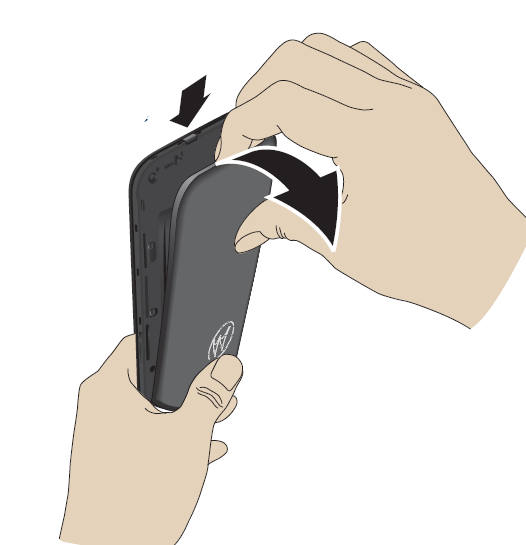
Step 3: Put your finger in the USB charging port, as shown below.

Step 4: Press your thumb of the hand in the centre of the back (Motorola logo), as shown below.

You need to use two hands to remove Moto G back cover.

You also need to press the Motorola logo hard (apply some force, not just put the thumb there) so that it is easy to pry the cover off.

Step 5: Pry the cover off.

remove_moto_g_back_cover

Please remember it is not necessary to use any tools to remove Moto G back cover. Such tools may damage the cover or internal parts

If you still have problems to take off Moto G back cover, you may check this official video.

How about Moto E back cover?

Moto E back cover shares a similar design of Moto G back cover.

So, you can remove Moto E back cover with the identical method mentioned on this page.

This applies to both Moto E and Moto E … Read the rest

How to use dual SIM cards on Moto G?

how-to-use-moto-g-dual-sim-card-customizationUpdate: if you want to make both SIM cards available at all times in dual SIM version of Moto G (all Moto G generations) so that you will not miss any calls (even when you are talking over one SIM card) , you may follow this guide to set up call forwarding and call waiting.
In some regions, Moto G supports dual SIM cards. In other words, you can use up to two SIM cards simultaneously.

But Moto G dual SIM (and Moto E, Moto X and Moto Z) phones are dual standby, NOT dual active. Please refer to this dual SIM Android phone guide on differences between dual standby and dual active in dual SIM phones.

For correct SIM card size for Moto G (Moto E and Moto X as well) and how to insert SIM card  into Moto G, please check this guide.

How to access Moto G dual SIM settings?

All the settings related to Moto G dual SIM cards can be accessed through Settings— Dual SIM settings.

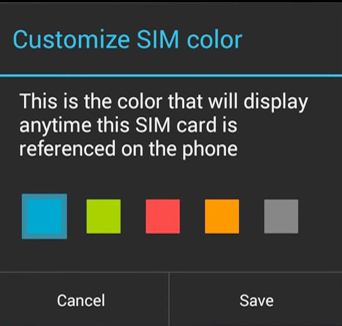
You can choose icon colors for each SIM card, choose the SIM card used for mobile data.

Please note, only one SIM card can be used for 3G. The other one can only be on 2G.

If you are using one SIM card, you can ignore all setting here.  The settings here are only relevant to owners who are using two SIM cards on the Moto G.

How to get rid of the Moto G SIM card selection when making a call?

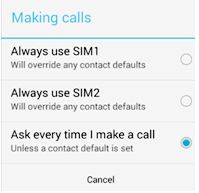
how-to-use-moto-g-dual-sim-card-sim-selectionBy default, when you dial a number, you will be asked for the SIM card to be used for that call. This is useful if you want to use different SIM cards for different numbers, and you need switch them frequently.
However, this can be annoying when you mainly use only one of the SIM cards for outgoing calls.

It is easy to designate one of the SIM card for all of your outgoing calls. You can go to Settings–Dual  SIM settings– Call settings, tap Making calls. Then you have 3 options:

  1. use SIM card 1
  2. use SIM card 2
  3. let you select each time (this is the default setting).

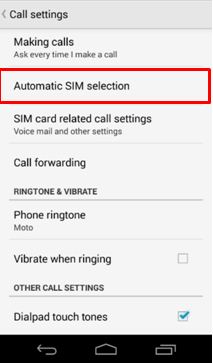
How to use Moto G  automatic SIM selection?

how-to-use-moto-g-dual-sim-card-automatic_sim-selectionMoto G also has a nice feature in dual SIM cards models for those who have to switch between SIM cards for outgoing … Read the rest

Primary Sidebar

Stop Telling Boring One-Liners. Start Telling Unforgettable Stories.

All Over The Map: Funny Stories for Every Place You Go—From 36,000 Feet to the Bedroom
$4.99
Buy on Amazon

Moto G Update Newsletter

RSS Galaxy S25 Guides

  • All New Features of One UI 8 (Android 16) Update for Galaxy S25, S24, S23, and S22
  • One UI 8 Update Highlights for Galaxy S25, S24, S23, and S22
  • How to manage camera modes on Galaxy S25 (and Galaxy S24, S23, S22, and S21 with One UI 7 update)?
  • How to Use Galaxy S25 Camera App?
  • A Definite Guide to Galaxy S25 Flipsuit Case
  • How to Access and Customize Now Brief on Galaxy S25?
  • Meaning of Galaxy S25 Status Icons and Notification Icons
  • Layout of Galaxy S25, S25+, and S25 Ultra
  • New Galaxy AI features in Galaxy S25, S25+, and S25 Ultra
  • Top 10 new features of Galaxy S25, S25+, and S25 Ultra

RSS Galaxy S24 Guides

  • The definitive guide to One UI 7 (Android 15) update for Galaxy S24, S23, S22, and S21
  • The Definitive Guide to Galaxy AI on Galaxy S24, S23, S22, Fold 6, Fold 5, Flip 6, and Flip 5
  • Use the Light Performance Profile to Extend Battery Life and Reduce Heat on Galaxy S24, S23, S22, and S21 (all Samsung Galaxy Phones with Android 14/One UI 6.0)
  • How to adjust lock screen timeout on Galaxy S24, S23, S22, and other Galaxy devices?
  • How to use Circle to Search on Galaxy S24?

RSS Galaxy S23 Guides

  • Explanation of all One UI 6.1 features for Galaxy S23, S23+, S23 Ultra, and other Galaxy devices
  • How to use One-Tap Editing in the Android 14 (One UI 6) update?
  • How to enable and use Auto Scan to scan documents automatically on Galaxy S23, S22, and S21?
  • New camera features in One UI 6 (Android 14) update for Galaxy S23, S22, and S21
  • Galaxy S23 User Manual in American English with Android 14 (One UI 6) Update

RSS Galaxy S22 Gudies

  • A Complete Guide for Android 14 (One UI 6) Update on Samsung Galaxy Devices
  • How to touch and hold to customize Lock Screen on Galaxy S22, S21, and S20 with the Android 13 update?
  • How to use Maintenance Mode on Galaxy S23, S22, S21, and S20 with Android 13 (One UI 5)?
  • How to extract text from photos and images on Galaxy S22, S21, and S20?

RSS Samsung Galaxy S21 Guides

  • Top 12 new features in Android 12 update for Galaxy S21, S20 and S10
  • Android 12 update vs One UI 4.0 vs One UI 4.1: update Galaxy S21, S20 and S10 to Android 12
  • How to set and resize photo size on Samsung Galaxy S21, S20, S10, and S9 without using any third-party apps?

RSS Headphone Guides

  • Bone Conduction Audio Technology: A Technical Breakdown
  • Science And Architecture of Bluetooth Auracast
  • Bluetooth LE Audio and the LC3 Codec: A Technical Deep Dive
  • The Physics and Engineering of Super Wide Band (SWB) Voice
  • True Wireless Stereo (TWS) Explained
  • The Complete Technical Guide to the Galaxy Buds 4 & Buds 4 Pro
  • The Right Fit of Galaxy Buds 4 — User Personas & Recommendations
  • Galaxy Buds 4 as an AI Earbud — Tips, Tricks, and Galaxy AI

RSS Galaxy Note Tips & Tricks

  • Top 11 disappointments of Galaxy Note 20 and Galaxy Note 20 Ultra
  • How to use the Dynamic Lock screen on Galaxy Note 10?
  • Galaxy Note 10 LED View Cover Guide and Review
  • Install S Note app and Extension pack on Galaxy Note 10

RSS Kindle Fire For Kids

  • Fire Tablet Buyer’s Guide 2025
  • How to use Writing Assist on Fire Tablet?
  • How to use Wallpaper Creator on your Fire tablet?
  • How to Use Webpage Summaries on Your Fire Tablet?
  • What’s new in Fire HD 8 2024 (12th Gen)?

RSS Chromecast Guide

  • How to enable developer options in Chromecast with Google TV and Google TV Streamer?
  • Meaning of LED light on voice remote for Chromecast with Google TV and Google TV Streamer
  • What’s new in Chromecast 2018 (3rd gen of Chromecast)?
  • How to use VLC media player on PC to stream music and video to Chromecast and Chromecast Audio?
  • How to use Chromecast Ultra to stream 4K content?
  • How to disable Google Home and Chromecast casting notification?

RSS Moto E Guide

  • How to use SIM cards on Moto E6, E6 Plus, E6 Play, and E6s 2020?
  • Official user manual for Moto E6, Moto E6 Plus, Moto E6 Play, and Moto E6s
  • Moto E6 vs Moto E6 Plus vs Moto E6 Play vs Moto E6s: what are the major differences?
  • Moto E 2nd Gen (Moto E 4G): the best value-for-money smartphone in 2015

RSS Samsung Galaxy S20 Guides

  • The End of the Road: No Android 14 Update for the Galaxy S20
  • How to Use Enhanced Processing on Galaxy S20 with Android 11 update?
  • How to access, use, and customise widgets on Galaxy S20 lock screen and AOD screen with Android 11 update for Galaxy S20?
  • How to update Galaxy S20 to Android 11?

RSS Chinese Classical Music

  • How to Cast Chinese Music Radio to Chromecast or Google Home?
  • 十面埋伏 (Ambushed,Pipa,琵琶曲,Shi Mian Mai Fu)
  • Meet in Yurt(敖包相会, Ao Bao Xiang Hui,Folk song,民歌)
  • Purple Bamboo Melody(紫竹调, Zi Zhu Diao,Yangqin,扬琴)

Footer

RSS Moto X Guide

  • Welcome on board, Motorola Razr!
  • Official Moto X4 User manual (User guide for Moto X 4th Gen , Moto X 2017)
  • What’s new in Android Marshmallow update for Moto X (Moto X 2015, Moto X 2014, Moto X Style and Moto X Pure edition)?

RSS Galaxy S5 Guide

  • How to enter Galaxy S5 recovery mode?
  • How to set Galaxy S5 photo size and video size?
  • How to use Galaxy S5 camera voice control?

RSS Drive in Singapore

  • Singapore ERP (Electronic Road Pricing): 6 Facts You Need to Know
  • Car Insurance in Singapore Explained
  • Top 5 rules of driving in Singapore safely and legally during COVID-19 Circuit Breaker period
  • Understand COE Price by 10 Simple Questions
  • How to convert a foreign driving license to a Singapore driving license?
  • How to get a Touch ‘n Go card as a Singapore driver?
  • What is covered in the car warranty in Singapore? What is not?
  • What is the Singapore Road Speed Limit?
  • How to register, collect and use Malaysia Vehicle Entry Permit (VEP)?
  • Why are cars in Singapore so expensive?

RSS Google Home Guides

  • How to Use Quick Gestures on Nest Hub 2nd Gen and Nest Hub Max?
  • Understand the layout of Nest Hub (including Nest Hub 2nd Gen, Google Home Hub)
  • How to control Nest Audio?
  • Nest Audio Guides
  • Layout of Google Nest Mini (Google Home Mini 2nd Gen)
  • How to connect Google Home to a Bluetooth speaker?
  • Meaning of Google Home Mini LED lights and Google Home Max LED lights
  • Google Home Mini Guides
  • Google Home Mini layout and buttons
  • Google Home layout and buttons

© 2013–2026 · Moto G Guides: Everything about Moto G: how-to guide, user manuals, tips and tricks for Motorola/Lenovo Moto G, Moto G2, Moto G3, Moto G4, Moto G5, Moto G6, Moto G7, and Moto G8 · Hosted by PTRHosting · Powered by Genesis framework for WordPress

Disclaimer: Motorola, Moto G are trademarks of Motorola Mobility. This website is NOT affiliated with Motorola Mobility LLC in any way. All the information provided on this website is provided on an "as is" and "as available" basis and you agree that you use such information entirely at your own risk.

Add Moto G Phone Guide to your Homescreen!

Add
pixel