Update: For Moto G 2015 (Moto G 3rd Gen) or Moto X 3rd Gen (Moto X Pure edition, Moto X Style and Moto X Play), because Android Lollipop 5.1 is pre-installed, you should be able to find the icon in quick settings panel. If not, you can also follow this guide to enable the auto-rotate screen option.
After updating your Moto G (including Moto G 2nd Gen) and Moto X (including Moto X 2nd Gen) to Android Lollipop (Android 5.0, you may refer to this post on top 5 new features in Android Lollipop update for Moto G, Moto X and Moto E), you may find you cannot enable auto-rotate screen because you cannot find the settings in the Settings–Display as in Android KitKat.
If you go to quick settings in Lollipop in Moto G or Moto X, by default, there is also no icon for auto-rotate screen.
Is auto-rotate screen removed in Android Lollipop update for Moto G and Moto X?
The answer is no. Auto-rotate screen is an essential feature in today’s smartphones. Motorola is not so crazy to remove such a feature.
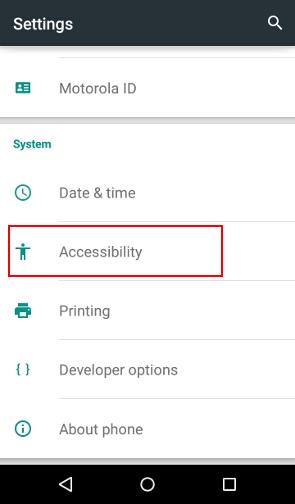
In the Android Lollipop update for Moto G and Moto X, auto-rotate screen setting is just placed under Settings—Accessibility as shown below, not the old location (Settings–Display).
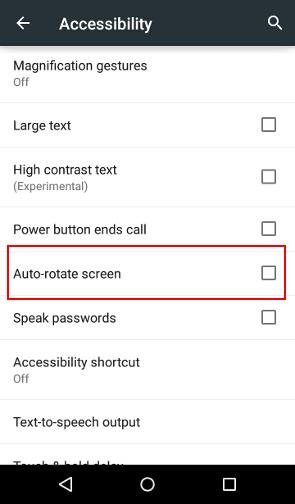
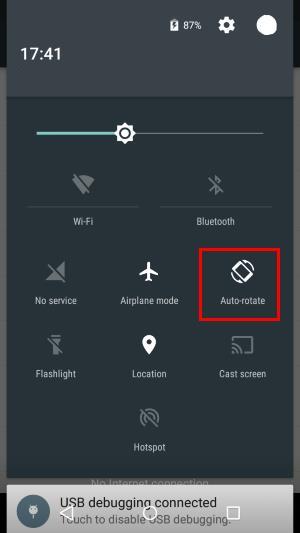
Once you enabled the auto-rotate screen, you will be able to find the corresponding icon in the quick settings panel as shown below.
You only enable auto-rotate screen once from Settings–Accessibility.
From now on, you can just use the quick settings panel to quickly toggle on auto rotate screen or lock it to Portrait mode as shown below.
If you are not familiar with the quick settings panel in Android Lollipop, please check this guide.
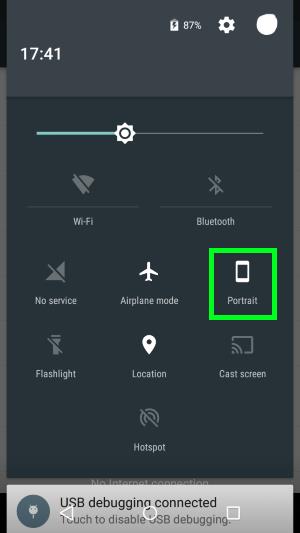
Please note, you can only lock the screen in portrait mode. There is no way to lock the screen in landscape mode for Moto G and Moto X because most pages of the Google Now launcher only work in portrait orientation.
If you need to work in landscape orientation in your Moto G or Moto X, your only option is to enable auto-rotate screen.
Another exception of screen orientation is the Camera app. Camera app does NOT respect the auto-rotate screen settings.
In other words, even if you turn off auto-rotate screen (i.e., lock the screen in portrait orientation), the camera app may still take pictures in landscape orientation when you hold the phone in landscape orientation.
Do you have problems with the auto-rotate screen after Lollipop update for Moto G and Moto X?
If you have any questions or problems on using auto-rotate screen after Lollipop update for Moto G and Moto X, please let us know in the comment box below.
The community will help you.
For other Moto G questions, please check our Moto G how-to guide page.
If you have questions with using Android Lollipop in your Moto G or Moto X, please check Android Lollipop Guides.



Savy says
Hi there. I ave inserted sd card like year ago and selected camera storage location as sd card. But in internal storage in settings, all my camera photos are showing in images folder. What’s the problem? Are these photos taking up space in internal memory?
simon says
Did you check camera settings again? Did you use SD card as internal storage or portal storage?
NEW!! Facebook page || Moto G How-to guides || Moto G online manual || Official Moto G user manual (PDF) || Android Guides || Chromecast Guides || Fire tablet guide || Moto E guide || Galaxy S6 Guides || Galaxy S7 Guides || Galaxy S8 Guides || Galaxy S9 Guides || Google Home Guides || Galaxy S10 Guides || Samsung Galaxy S20 Guides || Samsung Galaxy S21 Guides || Headphone and Earbuds Guides || Samsung Galaxy S22 Guides || Samsung Galaxy S23 Guides || Samsung Galaxy S24 Guides || Samsung Galaxy S25 GuidesShaileah says
Hi……Me Shailesh I am using moto e first gen from the last two years after updating my os from KitKat to lollipop I am not getting the auto rotation.What is the problem??? If I change the autorotation from portrait to auto rotation it was not working….
simon says
If you use camera app, does the screen rotate?
NEW!! Facebook page || Moto G How-to guides || Moto G online manual || Official Moto G user manual (PDF) || Android Guides || Chromecast Guides || Fire tablet guide || Moto E guide || Galaxy S6 Guides || Galaxy S7 Guides || Galaxy S8 Guides || Galaxy S9 Guides || Google Home Guides || Galaxy S10 Guides || Samsung Galaxy S20 Guides || Samsung Galaxy S21 Guides || Headphone and Earbuds Guides || Samsung Galaxy S22 Guides || Samsung Galaxy S23 Guides || Samsung Galaxy S24 Guides || Samsung Galaxy S25 GuidesRakul says
After updating m in Moto g2nd gen call waiting service not there and screen orientation not available , very much battery drain and heating , I tried all the possible ways
simon says
Call waiting is a mobile network feature. You need check sim card settings in phone app
For battery drain, your need check battery usage details.
NEW!! Facebook page || Moto G How-to guides || Moto G online manual || Official Moto G user manual (PDF) || Android Guides || Chromecast Guides || Fire tablet guide || Moto E guide || Galaxy S6 Guides || Galaxy S7 Guides || Galaxy S8 Guides || Galaxy S9 Guides || Google Home Guides || Galaxy S10 Guides || Samsung Galaxy S20 Guides || Samsung Galaxy S21 Guides || Headphone and Earbuds Guides || Samsung Galaxy S22 Guides || Samsung Galaxy S23 Guides || Samsung Galaxy S24 Guides || Samsung Galaxy S25 Guidesswathi says
in my phone i didnot found moto or home option .what is the reason
simon says
For 2nd and 3rd gen Moto G, only Google Now launcher was installed. So, there is home option.
For Moto app, you can install it from Play store.
NEW!! Facebook page || Moto G How-to guides || Moto G online manual || Official Moto G user manual (PDF) || Android Guides || Chromecast Guides || Fire tablet guide || Moto E guide || Galaxy S6 Guides || Galaxy S7 Guides || Galaxy S8 Guides || Galaxy S9 Guides || Google Home Guides || Galaxy S10 Guides || Samsung Galaxy S20 Guides || Samsung Galaxy S21 Guides || Headphone and Earbuds Guides || Samsung Galaxy S22 Guides || Samsung Galaxy S23 Guides || Samsung Galaxy S24 Guides || Samsung Galaxy S25 Guidesimran says
Mr.Simon,I have a problem with moto e settlings, why all my apps are shown in portrait view, earlier I used to see apps in 2 to 3 windows, but how can we change it now.
simon says
Did you turn on auto screen rotate?
NEW!! Facebook page || Moto G How-to guides || Moto G online manual || Official Moto G user manual (PDF) || Android Guides || Chromecast Guides || Fire tablet guide || Moto E guide || Galaxy S6 Guides || Galaxy S7 Guides || Galaxy S8 Guides || Galaxy S9 Guides || Google Home Guides || Galaxy S10 Guides || Samsung Galaxy S20 Guides || Samsung Galaxy S21 Guides || Headphone and Earbuds Guides || Samsung Galaxy S22 Guides || Samsung Galaxy S23 Guides || Samsung Galaxy S24 Guides || Samsung Galaxy S25 GuidesShalee says
my camera will only take pictures in landscape mode through the camera app. It will not go to portrait mode at all just started happening. I have rebooted several times and no luck in solving the problem. Please help.
simon says
Did you try other camera apps, for example, Google camera?
NEW!! Facebook page || Moto G How-to guides || Moto G online manual || Official Moto G user manual (PDF) || Android Guides || Chromecast Guides || Fire tablet guide || Moto E guide || Galaxy S6 Guides || Galaxy S7 Guides || Galaxy S8 Guides || Galaxy S9 Guides || Google Home Guides || Galaxy S10 Guides || Samsung Galaxy S20 Guides || Samsung Galaxy S21 Guides || Headphone and Earbuds Guides || Samsung Galaxy S22 Guides || Samsung Galaxy S23 Guides || Samsung Galaxy S24 Guides || Samsung Galaxy S25 GuidesPaul Smith says
I have auto rotate on, but chrome, messages and other apps stick in landscape after rotating from portrait. Only way to get them back to portrait is switching auro rotate off. I can’t find a way to calibrate my phone. Any advice would be welcome.
simon says
you can just reboot the phone to see whether the problem is solved.
You can always back to portrait by returning to home screen.
NEW!! Facebook page || Moto G How-to guides || Moto G online manual || Official Moto G user manual (PDF) || Android Guides || Chromecast Guides || Fire tablet guide || Moto E guide || Galaxy S6 Guides || Galaxy S7 Guides || Galaxy S8 Guides || Galaxy S9 Guides || Google Home Guides || Galaxy S10 Guides || Samsung Galaxy S20 Guides || Samsung Galaxy S21 Guides || Headphone and Earbuds Guides || Samsung Galaxy S22 Guides || Samsung Galaxy S23 Guides || Samsung Galaxy S24 Guides || Samsung Galaxy S25 GuidesPaul Smith says
I have tried re-booting the phone, removing the sim and the SD card, but with no success. I cannot remove the battery or recalibrate the phone, which would normally solve simple problem like this. Going back to the home screen unfortunately does not resolve the underlying problem that only started yesterday. Do you have any further advice?
simon says
It is probably not related to the battery.
You probably have to backup the phone and do a factory reset.
You may also try to clear cache partition by following this guide.
NEW!! Facebook page || Moto G How-to guides || Moto G online manual || Official Moto G user manual (PDF) || Android Guides || Chromecast Guides || Fire tablet guide || Moto E guide || Galaxy S6 Guides || Galaxy S7 Guides || Galaxy S8 Guides || Galaxy S9 Guides || Google Home Guides || Galaxy S10 Guides || Samsung Galaxy S20 Guides || Samsung Galaxy S21 Guides || Headphone and Earbuds Guides || Samsung Galaxy S22 Guides || Samsung Galaxy S23 Guides || Samsung Galaxy S24 Guides || Samsung Galaxy S25 GuidesPaul Smith says
Good evening Simon,
Thank you for taking the time to reply to my post. I have now cleared the cache partition, as per the very useful step by step instructions you provided, and the problem has now been resolved.
Thank you and kind regards
Paul
simon says
Thank you for the update. Enjoy your phone.
NEW!! Facebook page || Moto G How-to guides || Moto G online manual || Official Moto G user manual (PDF) || Android Guides || Chromecast Guides || Fire tablet guide || Moto E guide || Galaxy S6 Guides || Galaxy S7 Guides || Galaxy S8 Guides || Galaxy S9 Guides || Google Home Guides || Galaxy S10 Guides || Samsung Galaxy S20 Guides || Samsung Galaxy S21 Guides || Headphone and Earbuds Guides || Samsung Galaxy S22 Guides || Samsung Galaxy S23 Guides || Samsung Galaxy S24 Guides || Samsung Galaxy S25 GuidesBev says
I have auto rotate on, but my screen goes black when it switches over
simon says
Does it come back normal later? In all apps or specific apps?
NEW!! Facebook page || Moto G How-to guides || Moto G online manual || Official Moto G user manual (PDF) || Android Guides || Chromecast Guides || Fire tablet guide || Moto E guide || Galaxy S6 Guides || Galaxy S7 Guides || Galaxy S8 Guides || Galaxy S9 Guides || Google Home Guides || Galaxy S10 Guides || Samsung Galaxy S20 Guides || Samsung Galaxy S21 Guides || Headphone and Earbuds Guides || Samsung Galaxy S22 Guides || Samsung Galaxy S23 Guides || Samsung Galaxy S24 Guides || Samsung Galaxy S25 GuidesToni says
I have a blue circle with a person figure that has shown up next to the settings button in the right hand corner? What is it? And how can I get rid of it?
simon says
Multi user feature on android lollipop. Please read this guide http://gadgetguideonline.com/android/lollipop/how-to-use-android-lollipop-guest-user-mode-and-multiple-users/
NEW!! Facebook page || Moto G How-to guides || Moto G online manual || Official Moto G user manual (PDF) || Android Guides || Chromecast Guides || Fire tablet guide || Moto E guide || Galaxy S6 Guides || Galaxy S7 Guides || Galaxy S8 Guides || Galaxy S9 Guides || Google Home Guides || Galaxy S10 Guides || Samsung Galaxy S20 Guides || Samsung Galaxy S21 Guides || Headphone and Earbuds Guides || Samsung Galaxy S22 Guides || Samsung Galaxy S23 Guides || Samsung Galaxy S24 Guides || Samsung Galaxy S25 GuidesManohar says
My screen’s not rotating even I though I turned on the auto-rotate.
simon says
Some apps only have one orientation. Did to test it in Google maps?
NEW!! Facebook page || Moto G How-to guides || Moto G online manual || Official Moto G user manual (PDF) || Android Guides || Chromecast Guides || Fire tablet guide || Moto E guide || Galaxy S6 Guides || Galaxy S7 Guides || Galaxy S8 Guides || Galaxy S9 Guides || Google Home Guides || Galaxy S10 Guides || Samsung Galaxy S20 Guides || Samsung Galaxy S21 Guides || Headphone and Earbuds Guides || Samsung Galaxy S22 Guides || Samsung Galaxy S23 Guides || Samsung Galaxy S24 Guides || Samsung Galaxy S25 GuidesRavi says
Thank you very much thanks a lot
Milos says
I have turned on auto rotate screen but still it in not auto rotating… not even pictures. Is there any solution?
simon says
Can you find Auto-rotate in quick settings? You may try to reboot the phone to see whether it rotates in Gallery app.
NEW!! Facebook page || Moto G How-to guides || Moto G online manual || Official Moto G user manual (PDF) || Android Guides || Chromecast Guides || Fire tablet guide || Moto E guide || Galaxy S6 Guides || Galaxy S7 Guides || Galaxy S8 Guides || Galaxy S9 Guides || Google Home Guides || Galaxy S10 Guides || Samsung Galaxy S20 Guides || Samsung Galaxy S21 Guides || Headphone and Earbuds Guides || Samsung Galaxy S22 Guides || Samsung Galaxy S23 Guides || Samsung Galaxy S24 Guides || Samsung Galaxy S25 Guidesashutosh kumar says
I am not able to see data usage by tapping on cellular icon, it opens settings to enable or disable data usage directly
. Why this happens to me on moto g 1 ?
simon says
The icon is for disabling or enamored mobile data. You should go to the settings – more network settings to see data usage.
NEW!! Facebook page || Moto G How-to guides || Moto G online manual || Official Moto G user manual (PDF) || Android Guides || Chromecast Guides || Fire tablet guide || Moto E guide || Galaxy S6 Guides || Galaxy S7 Guides || Galaxy S8 Guides || Galaxy S9 Guides || Google Home Guides || Galaxy S10 Guides || Samsung Galaxy S20 Guides || Samsung Galaxy S21 Guides || Headphone and Earbuds Guides || Samsung Galaxy S22 Guides || Samsung Galaxy S23 Guides || Samsung Galaxy S24 Guides || Samsung Galaxy S25 Guidesshireef says
I updated my android to v 5.0.2 and i actually active auto rotate screen but it doesn’t work
Please advice me ASAP
simon says
can you find it in the quick settings?
You can try to reboot Moto G to see whether screen rotation works or not.
NEW!! Facebook page || Moto G How-to guides || Moto G online manual || Official Moto G user manual (PDF) || Android Guides || Chromecast Guides || Fire tablet guide || Moto E guide || Galaxy S6 Guides || Galaxy S7 Guides || Galaxy S8 Guides || Galaxy S9 Guides || Google Home Guides || Galaxy S10 Guides || Samsung Galaxy S20 Guides || Samsung Galaxy S21 Guides || Headphone and Earbuds Guides || Samsung Galaxy S22 Guides || Samsung Galaxy S23 Guides || Samsung Galaxy S24 Guides || Samsung Galaxy S25 Guidesshireef says
Thanks pro, I ‘m just restart my device
radhika says
I have turned on auto rotate screen but still it in not auto rotating….dose it need calibration?
simon says
Not all screens can be rotated, e.g., the home screen is always on portrait mode. Some apps may also have a fixed orientation.
Did you test it with the chrome browser?
NEW!! Facebook page || Moto G How-to guides || Moto G online manual || Official Moto G user manual (PDF) || Android Guides || Chromecast Guides || Fire tablet guide || Moto E guide || Galaxy S6 Guides || Galaxy S7 Guides || Galaxy S8 Guides || Galaxy S9 Guides || Google Home Guides || Galaxy S10 Guides || Samsung Galaxy S20 Guides || Samsung Galaxy S21 Guides || Headphone and Earbuds Guides || Samsung Galaxy S22 Guides || Samsung Galaxy S23 Guides || Samsung Galaxy S24 Guides || Samsung Galaxy S25 GuidesZahira says
I have done a factory reset, checked under accessibility to make sure that auto-rotate was checked, and it is showing on my pull-down menu that it is on auto-rotate. However, I am not able to get the screen to rotate. I have tried with the Google web browser and maps and still cannot get it to work. Is there anything else that I can do?
simon says
Probably the sensor is broken if the factory reset fails to solve the issue.
NEW!! Facebook page || Moto G How-to guides || Moto G online manual || Official Moto G user manual (PDF) || Android Guides || Chromecast Guides || Fire tablet guide || Moto E guide || Galaxy S6 Guides || Galaxy S7 Guides || Galaxy S8 Guides || Galaxy S9 Guides || Google Home Guides || Galaxy S10 Guides || Samsung Galaxy S20 Guides || Samsung Galaxy S21 Guides || Headphone and Earbuds Guides || Samsung Galaxy S22 Guides || Samsung Galaxy S23 Guides || Samsung Galaxy S24 Guides || Samsung Galaxy S25 GuidesAnkit says
Dear Simon,
I am not able to use internet data on my Moto G after lollipop update
simon says
Do you mean mobile data? Did you enable mobile data? do you see any symbols?
NEW!! Facebook page || Moto G How-to guides || Moto G online manual || Official Moto G user manual (PDF) || Android Guides || Chromecast Guides || Fire tablet guide || Moto E guide || Galaxy S6 Guides || Galaxy S7 Guides || Galaxy S8 Guides || Galaxy S9 Guides || Google Home Guides || Galaxy S10 Guides || Samsung Galaxy S20 Guides || Samsung Galaxy S21 Guides || Headphone and Earbuds Guides || Samsung Galaxy S22 Guides || Samsung Galaxy S23 Guides || Samsung Galaxy S24 Guides || Samsung Galaxy S25 Guidesnareshgoud says
Dear Simon,
The ringtones are not playing in my moto g after update lollipop,how I can play that.
simon says
When you go to Settings–Ringtones, does it play if you change ringtone?
Are you in silent mode? Please see this guide on notification and interruptions on Android Lollipop: http://gadgetguideonline.com/android/lollipop/how-to-use-android-lollipops-notification-and-interruption/
NEW!! Facebook page || Moto G How-to guides || Moto G online manual || Official Moto G user manual (PDF) || Android Guides || Chromecast Guides || Fire tablet guide || Moto E guide || Galaxy S6 Guides || Galaxy S7 Guides || Galaxy S8 Guides || Galaxy S9 Guides || Google Home Guides || Galaxy S10 Guides || Samsung Galaxy S20 Guides || Samsung Galaxy S21 Guides || Headphone and Earbuds Guides || Samsung Galaxy S22 Guides || Samsung Galaxy S23 Guides || Samsung Galaxy S24 Guides || Samsung Galaxy S25 Guides