• Skip to primary navigation
  • Skip to main content
  • Skip to primary sidebar
  • Skip to footer

Moto G Phone Guide

  • Home
    • Contact
    • Privacy
    • Forum
  • User Manuals
    • Moto G8 User Manual for Moto G8 Plus and Moto G8 Play
    • Official Moto G7 user manual
    • Official Moto G6 user manuals, Moto G6 Play user manuals and Moto G6 Plus user manuals
    • Official Moto G5 User Manual and Moto G5 Plus User Manual
    • Moto G4 User Manual: official PDF user guide for Moto G4, Moto G4 Plus and Moto G4 Play
    • Moto G 2015 user guide
    • Moto G 2nd Gen User Manual (Moto G 2014 User Manual)
    • Moto G Manual (Mot G user guide)
  • how-to guide
    • Stylus features on Moto G Stylus (all models)
    • Understand Moto G Model Names
      • What’s new in Moto G 2024? Moto G 5G 2024 vs Moto G Power 2024 vs Moto G Play 2024
      • Moto G8 vs Moto G8 Power vs Moto G8 Power Lite vs Moto G Power vs Moto G Stylus vs Moto G Pro vs Moto G fast: What are the differences?
      • Moto G8 Plus vs Moto G8 Play: Differences and common features
      • Moto G7 vs Moto G7 Play vs Moto G7 Plus vs Moto G7 Power: what are the differences?
      • What are the differences: Moto G6 vs Moto G6 Plus vs Moto G6 Play (Moto G 2018)?
      • Moto G5 vs Moto G5 plus: the major differences between Moto G5 and Moto G5 plus
      • What’s new in Moto G5 and Moto G5 Plus?
      • What are the differences of Moto G4, Moto G4 Plus and Moto G4 Play?
      • Top 6 exciting improvements in Moto G 2015 (Moto G 3rd Gen)
      • Moto G 2014 (aka Moto G 2nd generation) vs Moto G: top 10 facts you should know
    • Moto G5 Plus SIM card guide
      • How to install Moto G5 SIM card?
    • How to take screenshot on Moto G (without using apps)
    • How to use Moto G camera and change camera settings?
    • How to access developer options menu in Moto G?
    • How to use FM radio on Moto G?
    • Moto G wireless display: the problem and the solution
    • Meaning of Moto G notification icons
    • How to use Moto G voice command?
    • How to use Motorola Assist on Moto G?
    • How to Silence Moto G Notifications and Ringtones
    • How to use dual SIM cards on Moto G?
    • How to connect Moto G with PC through USB cable? (for Moto E and Moto X as well)
    • How to use Bluetooth to transfer files on Moto G, Moto E and Moto X?
    • How to use Wi-Fi Direct to transfer files on Moto G, Moto E and Moto X?
    • How to block certain callers on Moto G, Moto E and Moto X?
    • How to use Moto G safe mode (applies to Moto X and Moto E safe mode as well )?
    • Moto G USB OTG guide (also for Moto X)
  • Online Manual
    • Moto G layout
    • How to remove Moto G back cover?
    • Moto G Home screen
    • Insert SIM card into Moto G and Moto E
    • How to add apps to Moto G home screen (for Moto E and Moto X as well)
    • Add new home screen pages on Moto G, Moto E and Moto X
    • Use widgets on Moto G home screen (for Moto X and Moto E as well)
    • How to update Moto G, Moto E and Moto X?
    • Moto G 2015 camera guide
    • Top 10 new features in Android Nougat update for Moto G4 and Moto G4 Plus
    • What’s new in Moto G5 and Moto G5 Plus?
  • Accessory Guide
    • Moto G case guide

How to use Moto G safe mode (applies to Moto X and Moto E safe mode as well )?

What is Moto G safe mode?

Almost all Android devices offer a special mode called safe mode, which let you test the device with only pre-installed apps.  Moto G (including Moto G 2nd Gen), Moto E (including Moto E 2nd Gen.) and Moto X (including Moto X 2nd Gen.) are not the exceptions.

Essentially, Moto G safe mode (as well as Moto E safe mode and Moto X safe mode) can help you find out the possible cause of some phone problems due to third-party apps.

As we mentioned in this guide, after any major update in your Moto G, you may want to clear cache partition if Moto G performs worse than before the update.

But if the performance or weird problem is caused by some apps,  clearing cache partition on Moto G will not help.  You need boot your Moto G into Moto G safe mode.

Once you boot Moto G into safe mode, you can check whether the problem persists:

  • If the problem disappears, it means the problem is very likely caused by some apps you installed.  Moto G safe mode will NOT tell you the culprits. Actually, as mentioned, all apps installed by you are temporally disabled by Moto G safe mode.
  • If the problem persists, it means you may have to reset the phone or visit service center to check the phone.

So, Moto G safe mode is needed only when you have some problems with the phone.

Usually, you should try to clear cache partition before trying Moto G safe mode, when you have some problems with your Moto G.

How to reboot Moto G into Moto G safe mode?

To reboot Moto G into Moto G safe mode, please follow these steps.

Step 1: Get power options.

Press and hold power button until you get the power options on the screen as shown below.

The pop out window should appear in 2-3 seconds after you hold the power button.

Please do NOT hold the power button too long. Moto G will simply reboot if you hold the power button too long (more than 5 or 7 seconds).

Please note, the power options are different in KitKat and Lollipop.

If you Moto G is still on KitKat, the sound mode (sound, vibrate and mute) option is available in the pop out window. As detailed in this page, you can use this option to quickly silence Moto G.

If you have updated Moto G to Lollipop, the sound mode option is no longer available here as shown below. You may read this page on the new notification and interruption system in Lollipop.

Step 2: Tap and hold the power off option

You need tap and hold the option as shown below until it turns into Reboot to safe mode as shown below.

If you just tap power off and releasing your finger, then your Moto G will be turned off. You need power it on and try again.
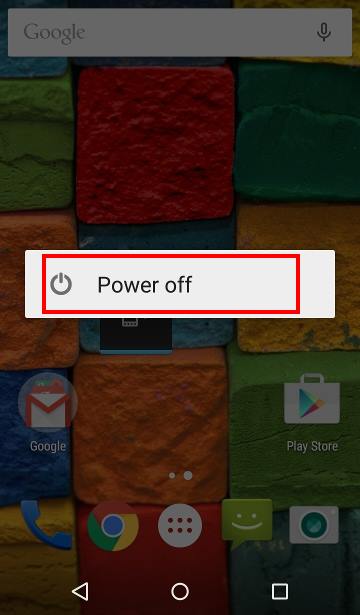
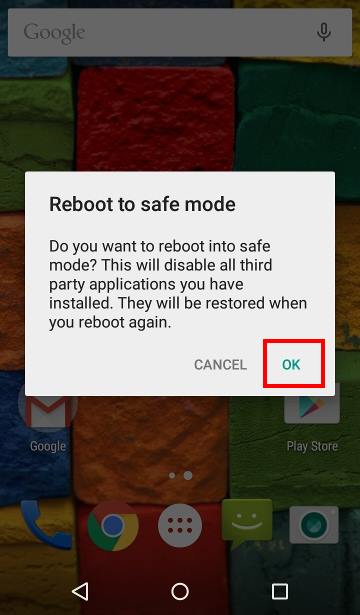
moto_g_safe_mode_moto_e_moto_x_safe_mode_1_power_off moto_g_safe_mode_moto_e_moto_x_safe_mode_2_reboot_to_safe_mode

Step 3: Reboot into Moto G safe mode

Power off option will turn into Moto G safe mode option after you tap and hold on it.

The new text will give you some info on Moto G safe mode:

Do you want to reboot into safe mode? This will disable all third-party applications you have installed. They will be restored when you reboot again.

Tap OK as shown above to reboot Moto G into safe mode.

Step 4: Check your Moto G in Moto G safe mode.

After one or two mins, Moto G should be rebooted into safe mode.

You can easily know the Moto G is in the safe mode from the watermark of Safe mode near bottom left as shown below.

This Safe mode watermark appears on all pages and screens when the phone is in Moto G safe mode.

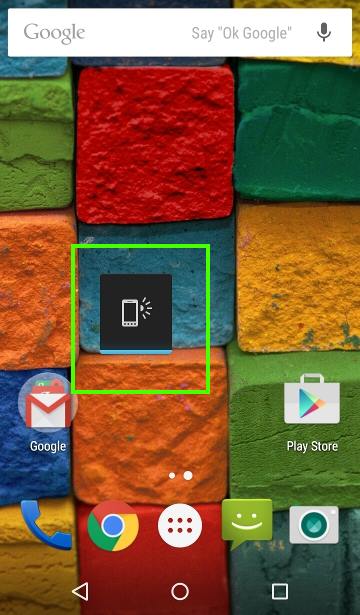
You may also notice some app shortcuts, app folders and widgets are removed from the home screen and apps screen. For example, as shown below, you can notice the Notification light widget was removed in safe mode.

So, this is normal if you find some apps, widgets or app folders are missing in Moto G safe mode.

You can test Moto G in the Moto G safe mode now to see whether the problem persists.
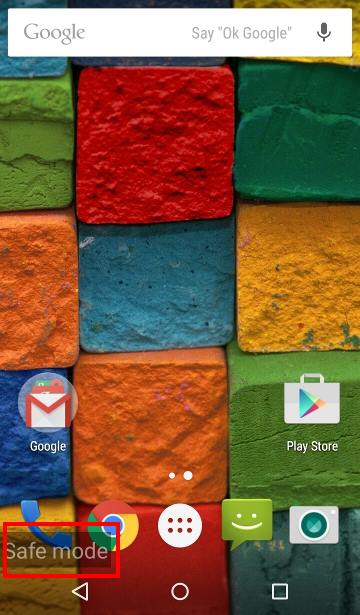
moto_g_safe_mode_moto_e_moto_x_safe_mode_3_safe_mode moto_g_safe_mode_moto_e_moto_x_safe_mode_4_apps_disbled

How to exit Moto G safe mode?

After testing Moto G in safe mode, you can simply press and hold the power button until it reboots.

You can also use power options to power off Moto G, then power it on.

In the notification panel, you also get a notification on Moto G safe mode, tap it may also guide you to exit safe mode (reboot the phone).

How about Mot E safe mode and Moto X safe mode?

You can reboot Moto E into Moto E safe mode, or Moto X into Moto X safe mode, in the exactly identical way as mentioned above.

In other words, this guide applies to Moto E safe mode and Moto X safe mode equally.

Can you use safe mode in Moto G, Moto X or Moto E?

If you have any questions on  how to reboot into safe mode in Moto G, Moto E and Moto X,  please let us know in the comment box below.

The community will try to help you find the solution.

More step-by-step guides , tips and tricks for your Moto G phone are available at our most popular Moto G how-to guide page.

For Moto X owners , please check this Moto X how-to guides page.

For Moto E owners , please check this Moto E how-to guides page.

Share this:

  • Share on Facebook (Opens in new window) Facebook
  • Share on X (Opens in new window) X
  • Share on LinkedIn (Opens in new window) LinkedIn

Reader Interactions

Comments

  1. Raven says

    March 5, 2017 at 9:16 am

    Is there an alternative way to enter safemode. My screen is blocked by a virus and all i can do is reboot by holding the power button down. Moto g4

    Reply
    • simon says

      March 5, 2017 at 1:35 pm

      No, probably no other ways.

      If you know it is virus or malware, you should reset the phone immediately. Do not try to get any data from it. Next time, remember to back up, and to get apps from Play store only.


      NEW!! Facebook page || Moto G How-to guides || Moto G online manual || Official Moto G user manual (PDF) || Android Guides || Chromecast Guides || Fire tablet guide || Moto E guide || Galaxy S6 Guides || Galaxy S7 Guides || Galaxy S8 Guides || Galaxy S9 Guides || Google Home Guides || Galaxy S10 Guides || Samsung Galaxy S20 Guides || Samsung Galaxy S21 Guides || Headphone and Earbuds Guides || Samsung Galaxy S22 Guides || Samsung Galaxy S23 Guides || Samsung Galaxy S24 Guides || Samsung Galaxy S25 Guides

      Reply
  2. Patrick says

    January 4, 2016 at 5:05 am

    Is there a way to power up a moto g phone into safe mode…. My phone is off and it stays on the logo screen or goes black, s anyway to fix this?

    Reply
    • simon says

      January 4, 2016 at 5:13 am

      If your Moto G cannot boot, you cannot enter safe mode. You may have to visit local Motorola service center.

      You can try to enter recovery mode to clear cache partition. You may follow this guide to clear cache partition on Moto G:
      https://allaboutmotog.com/how-to-clear-cache-partition-on-moto-g-and-moto-x-after-android-lollipop-update/

      If you cannot see the dead Android, it means you have to visit service center.


      NEW!! Facebook page || Moto G How-to guides || Moto G online manual || Official Moto G user manual (PDF) || Android Guides || Chromecast Guides || Fire tablet guide || Moto E guide || Galaxy S6 Guides || Galaxy S7 Guides || Galaxy S8 Guides || Galaxy S9 Guides || Google Home Guides || Galaxy S10 Guides || Samsung Galaxy S20 Guides || Samsung Galaxy S21 Guides || Headphone and Earbuds Guides || Samsung Galaxy S22 Guides || Samsung Galaxy S23 Guides || Samsung Galaxy S24 Guides || Samsung Galaxy S25 Guides

      Reply
  3. cathy kahn says

    December 3, 2015 at 4:18 pm

    I have green a green box around stuff and it will not go away, it also will just vibrate. I cannot get it to do anything. HELP!!!

    Reply
    • simon says

      December 4, 2015 at 12:40 am

      Not sure what you are talking about. Please elaborate.


      NEW!! Facebook page || Moto G How-to guides || Moto G online manual || Official Moto G user manual (PDF) || Android Guides || Chromecast Guides || Fire tablet guide || Moto E guide || Galaxy S6 Guides || Galaxy S7 Guides || Galaxy S8 Guides || Galaxy S9 Guides || Google Home Guides || Galaxy S10 Guides || Samsung Galaxy S20 Guides || Samsung Galaxy S21 Guides || Headphone and Earbuds Guides || Samsung Galaxy S22 Guides || Samsung Galaxy S23 Guides || Samsung Galaxy S24 Guides || Samsung Galaxy S25 Guides

      Reply
  4. Mugunthan says

    August 26, 2015 at 5:10 am

    how to backup my messages in moto g 1st gen

    Reply
    • simon says

      August 26, 2015 at 5:18 am

      There are many free apps on play store for this. Just search SMS backup and restore in play store


      NEW!! Facebook page || Moto G How-to guides || Moto G online manual || Official Moto G user manual (PDF) || Android Guides || Chromecast Guides || Fire tablet guide || Moto E guide || Galaxy S6 Guides || Galaxy S7 Guides || Galaxy S8 Guides || Galaxy S9 Guides || Google Home Guides || Galaxy S10 Guides || Samsung Galaxy S20 Guides || Samsung Galaxy S21 Guides || Headphone and Earbuds Guides || Samsung Galaxy S22 Guides || Samsung Galaxy S23 Guides || Samsung Galaxy S24 Guides || Samsung Galaxy S25 Guides

      Reply

Leave your commentsCancel reply

Primary Sidebar

Stop Telling Boring One-Liners. Start Telling Unforgettable Stories.

All Over The Map: Funny Stories for Every Place You Go—From 36,000 Feet to the Bedroom
$4.99
Buy on Amazon

Moto G Update Newsletter

RSS Galaxy S25 Guides

  • All New Features of One UI 8 (Android 16) Update for Galaxy S25, S24, S23, and S22
  • One UI 8 Update Highlights for Galaxy S25, S24, S23, and S22
  • How to manage camera modes on Galaxy S25 (and Galaxy S24, S23, S22, and S21 with One UI 7 update)?
  • How to Use Galaxy S25 Camera App?
  • A Definite Guide to Galaxy S25 Flipsuit Case
  • How to Access and Customize Now Brief on Galaxy S25?
  • Meaning of Galaxy S25 Status Icons and Notification Icons
  • Layout of Galaxy S25, S25+, and S25 Ultra
  • New Galaxy AI features in Galaxy S25, S25+, and S25 Ultra
  • Top 10 new features of Galaxy S25, S25+, and S25 Ultra

RSS Galaxy S24 Guides

  • The definitive guide to One UI 7 (Android 15) update for Galaxy S24, S23, S22, and S21
  • The Definitive Guide to Galaxy AI on Galaxy S24, S23, S22, Fold 6, Fold 5, Flip 6, and Flip 5
  • Use the Light Performance Profile to Extend Battery Life and Reduce Heat on Galaxy S24, S23, S22, and S21 (all Samsung Galaxy Phones with Android 14/One UI 6.0)
  • How to adjust lock screen timeout on Galaxy S24, S23, S22, and other Galaxy devices?
  • How to use Circle to Search on Galaxy S24?

RSS Galaxy S23 Guides

  • Explanation of all One UI 6.1 features for Galaxy S23, S23+, S23 Ultra, and other Galaxy devices
  • How to use One-Tap Editing in the Android 14 (One UI 6) update?
  • How to enable and use Auto Scan to scan documents automatically on Galaxy S23, S22, and S21?
  • New camera features in One UI 6 (Android 14) update for Galaxy S23, S22, and S21
  • Galaxy S23 User Manual in American English with Android 14 (One UI 6) Update

RSS Galaxy S22 Gudies

  • A Complete Guide for Android 14 (One UI 6) Update on Samsung Galaxy Devices
  • How to touch and hold to customize Lock Screen on Galaxy S22, S21, and S20 with the Android 13 update?
  • How to use Maintenance Mode on Galaxy S23, S22, S21, and S20 with Android 13 (One UI 5)?
  • How to extract text from photos and images on Galaxy S22, S21, and S20?

RSS Samsung Galaxy S21 Guides

  • Top 12 new features in Android 12 update for Galaxy S21, S20 and S10
  • Android 12 update vs One UI 4.0 vs One UI 4.1: update Galaxy S21, S20 and S10 to Android 12
  • How to set and resize photo size on Samsung Galaxy S21, S20, S10, and S9 without using any third-party apps?

RSS Headphone Guides

  • The Physics and Engineering of Super Wide Band (SWB) Voice
  • True Wireless Stereo (TWS) Explained
  • The Complete Technical Guide to the Galaxy Buds 4 & Buds 4 Pro
  • The Right Fit of Galaxy Buds 4 — User Personas & Recommendations
  • Galaxy Buds 4 as an AI Earbud — Tips, Tricks, and Galaxy AI
  • AirPods Pro 3: The Complete Technical Guide and Long-Term Review
  • The Flagship Face-off: Galaxy Buds 4 Pro vs. AirPods Pro 3, Sony WF-1000XM6, and Bose QC Ultra Earbuds II
  • Sony 1000X Headphones and Earbuds Guides

RSS Galaxy Note Tips & Tricks

  • Top 11 disappointments of Galaxy Note 20 and Galaxy Note 20 Ultra
  • How to use the Dynamic Lock screen on Galaxy Note 10?
  • Galaxy Note 10 LED View Cover Guide and Review
  • Install S Note app and Extension pack on Galaxy Note 10

RSS Kindle Fire For Kids

  • Fire Tablet Buyer’s Guide 2025
  • How to use Writing Assist on Fire Tablet?
  • How to use Wallpaper Creator on your Fire tablet?
  • How to Use Webpage Summaries on Your Fire Tablet?
  • What’s new in Fire HD 8 2024 (12th Gen)?

RSS Chromecast Guide

  • How to enable developer options in Chromecast with Google TV and Google TV Streamer?
  • Meaning of LED light on voice remote for Chromecast with Google TV and Google TV Streamer
  • What’s new in Chromecast 2018 (3rd gen of Chromecast)?
  • How to use VLC media player on PC to stream music and video to Chromecast and Chromecast Audio?
  • How to use Chromecast Ultra to stream 4K content?
  • How to disable Google Home and Chromecast casting notification?

RSS Moto E Guide

  • How to remove Moto E6 back cover (including Moto E6, Moto E6 Plus, Moto E6 Play)?
  • Moto E4 vs Moto E4 Plus: major differences between Moto E4 and Moto E4 Plus
  • Moto E 2nd Gen (Moto E 4G): the best value-for-money smartphone in 2015
  • How to use alarm and customize alarm tones on Moto E, Moto G and Moto X?

RSS Samsung Galaxy S20 Guides

  • The End of the Road: No Android 14 Update for the Galaxy S20
  • How to Use Enhanced Processing on Galaxy S20 with Android 11 update?
  • How to access, use, and customise widgets on Galaxy S20 lock screen and AOD screen with Android 11 update for Galaxy S20?
  • How to update Galaxy S20 to Android 11?

RSS Chinese Classical Music

  • How to Cast Chinese Music Radio to Chromecast or Google Home?
  • 十面埋伏 (Ambushed,Pipa,琵琶曲,Shi Mian Mai Fu)
  • Meet in Yurt(敖包相会, Ao Bao Xiang Hui,Folk song,民歌)
  • Purple Bamboo Melody(紫竹调, Zi Zhu Diao,Yangqin,扬琴)

Footer

RSS Moto X Guide

  • Welcome on board, Motorola Razr!
  • Official Moto X4 User manual (User guide for Moto X 4th Gen , Moto X 2017)
  • What’s new in Android Marshmallow update for Moto X (Moto X 2015, Moto X 2014, Moto X Style and Moto X Pure edition)?

RSS Galaxy S5 Guide

  • How to enter Galaxy S5 recovery mode?
  • How to set Galaxy S5 photo size and video size?
  • How to use Galaxy S5 camera voice control?

RSS Drive in Singapore

  • Singapore ERP (Electronic Road Pricing): 6 Facts You Need to Know
  • Car Insurance in Singapore Explained
  • Top 5 rules of driving in Singapore safely and legally during COVID-19 Circuit Breaker period
  • Understand COE Price by 10 Simple Questions
  • How to convert a foreign driving license to a Singapore driving license?
  • How to get a Touch ‘n Go card as a Singapore driver?
  • What is covered in the car warranty in Singapore? What is not?
  • What is the Singapore Road Speed Limit?
  • How to register, collect and use Malaysia Vehicle Entry Permit (VEP)?
  • Why are cars in Singapore so expensive?

RSS Google Home Guides

  • How to Use Quick Gestures on Nest Hub 2nd Gen and Nest Hub Max?
  • Understand the layout of Nest Hub (including Nest Hub 2nd Gen, Google Home Hub)
  • How to control Nest Audio?
  • Nest Audio Guides
  • Layout of Google Nest Mini (Google Home Mini 2nd Gen)
  • How to connect Google Home to a Bluetooth speaker?
  • Meaning of Google Home Mini LED lights and Google Home Max LED lights
  • Google Home Mini Guides
  • Google Home Mini layout and buttons
  • Google Home layout and buttons

© 2013–2026 · Moto G Guides: Everything about Moto G: how-to guide, user manuals, tips and tricks for Motorola/Lenovo Moto G, Moto G2, Moto G3, Moto G4, Moto G5, Moto G6, Moto G7, and Moto G8 · Hosted by PTRHosting · Powered by Genesis framework for WordPress

Disclaimer: Motorola, Moto G are trademarks of Motorola Mobility. This website is NOT affiliated with Motorola Mobility LLC in any way. All the information provided on this website is provided on an "as is" and "as available" basis and you agree that you use such information entirely at your own risk.

Add Moto G Phone Guide to your Homescreen!

Add
pixel